Formatting the Kanguru UltraLock using Linux OS

Due to an incompatibility with the Disks application on certain Linux distributions, the Kanguru UltraLock should be partitioned using the built-in tool fdisk
Note: Formatting a drive in Linux requires super user privileges.
To use fdisk to format your Kanguru Ultralock:
Step 1: Open Terminal
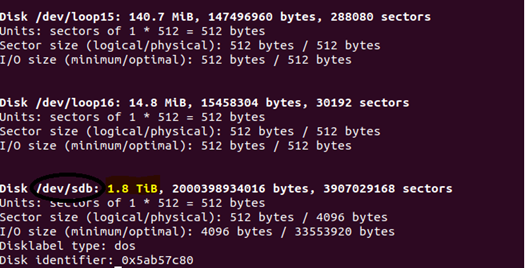
Step 2: Type sudo fdisk -l
Identify the Ultralock’s Device Id in the output:
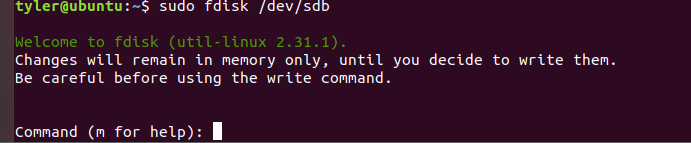
Step 3: Type sudo fdisk /dev/“Device ID”
example: sudo fdisk /dev/sdb
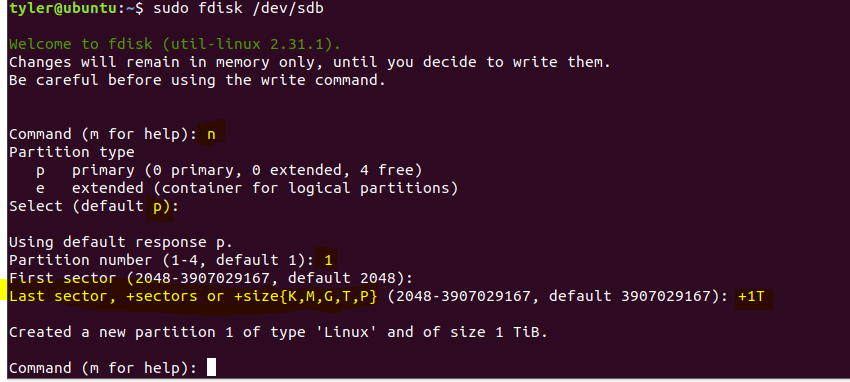
Step 4: Enter command n and then:
- Select the partition type as: p (primary) or e (extended)
- Enter a partition number
- Specify the size of partition using the format: + “quantity” “base unit letter”
Example: +1T for a one terabyte partition, +5G for a five gigabyte partition, +512M for a 512 megabyte partition.
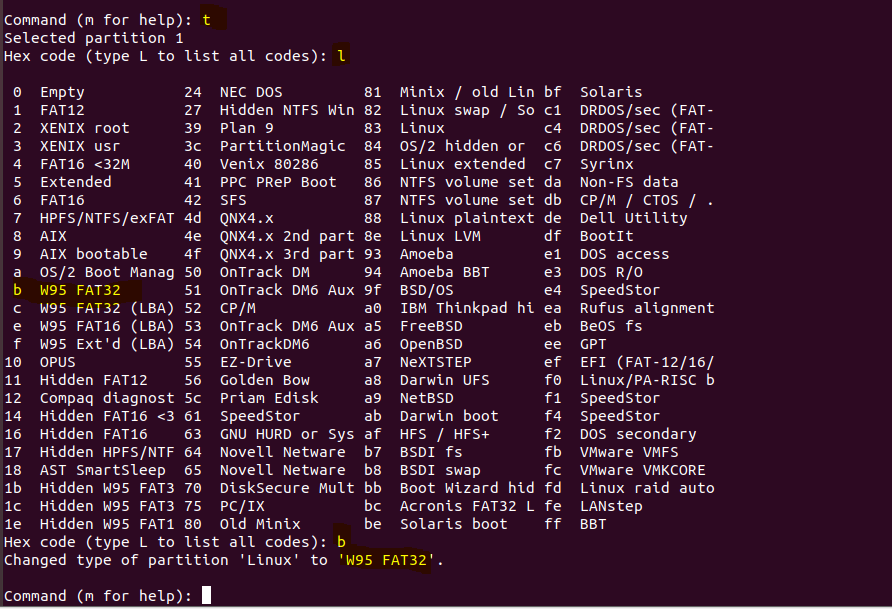
Step 5: Enter command t to set the file system. Enter command l to list all options. Enter the hex code displayed to the left of the desired filesystem.
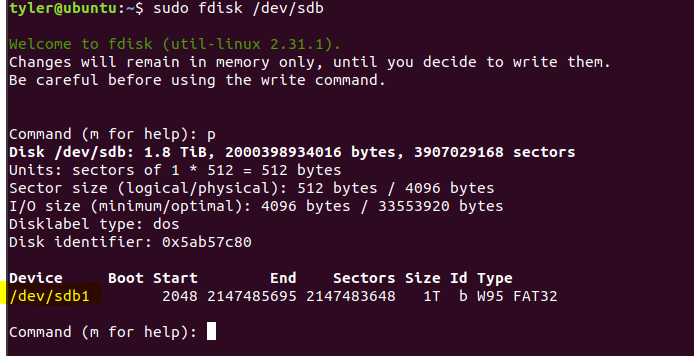
Step 6: Enter command p to view the expected changes and note the Device ID
Step 7: Enter command w to write the changes to the drive.
Step 8: Enter the format command for your desired file system and include your Device ID.
Example: sudo mkfs.fat -F 32 /dev/sdb1

Step 9: Create a directory for this partition to mount and then mount the partition using the following commands:
sudo mkdir “Directory Path”
sudo mount “Device ID” “Directory Path”

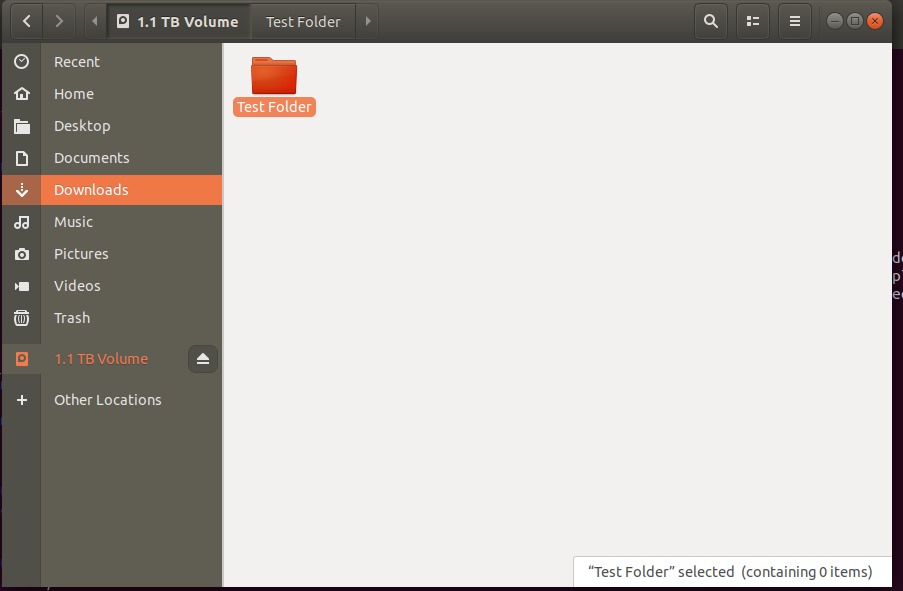
Your partition is mounted and now available in Files.