
HD Pro Duplicator - Advanced Setup - Auto Kick Slow

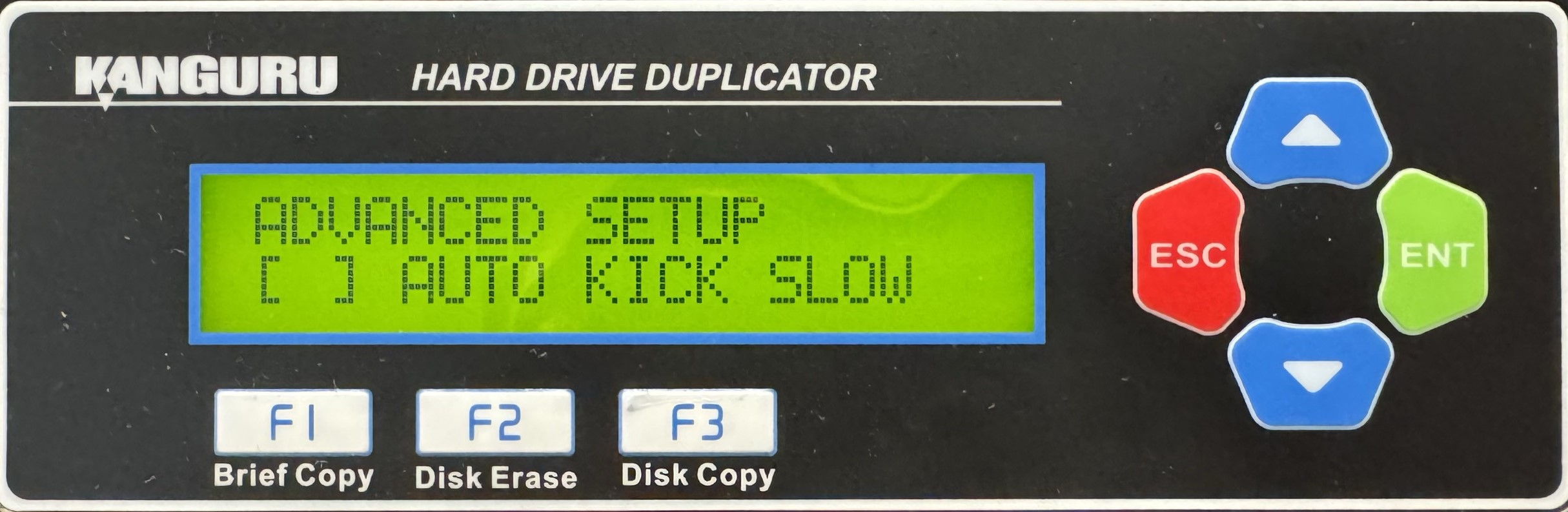
Not all drives are equal, and some drives will be slower than others due to max performance, health and other factors. Since the duplicator operates in a synchronous mode, the duplicator can only operate as fast as the slowest drive attached. Enabling Auto Kick Slow option allows the duplicator to detect any slow drives and automatically remove them from the operation. Tap the ENT button to change this option.
NOTE: This is only available on the 15-Target and 23-Target Hard Drive SATA Pro Duplicators.
|
Disabled |
Duplicator will operate as fast as the slowest connected drive. Slow drives can be ejected manually by holding the ‘F1’ button. Note: This is the Default setting. |
|
Enabled |
If a drive’s operating speed falls below a certain level for a specified length of time (as defined by Set Kick Time and Set Kick Speed) the drive will be automatically ejected from the operation. |
To alter the Auto Kick Slow setting:
- Power on the duplicator.
- From the Main Copy Menu press the ESC button to enter the Menu Select mode.
- Press the Up or Down buttons until you see Advanced Setup.
- When Advanced Setup is displaying for you, press the ENT button to enter this menu.
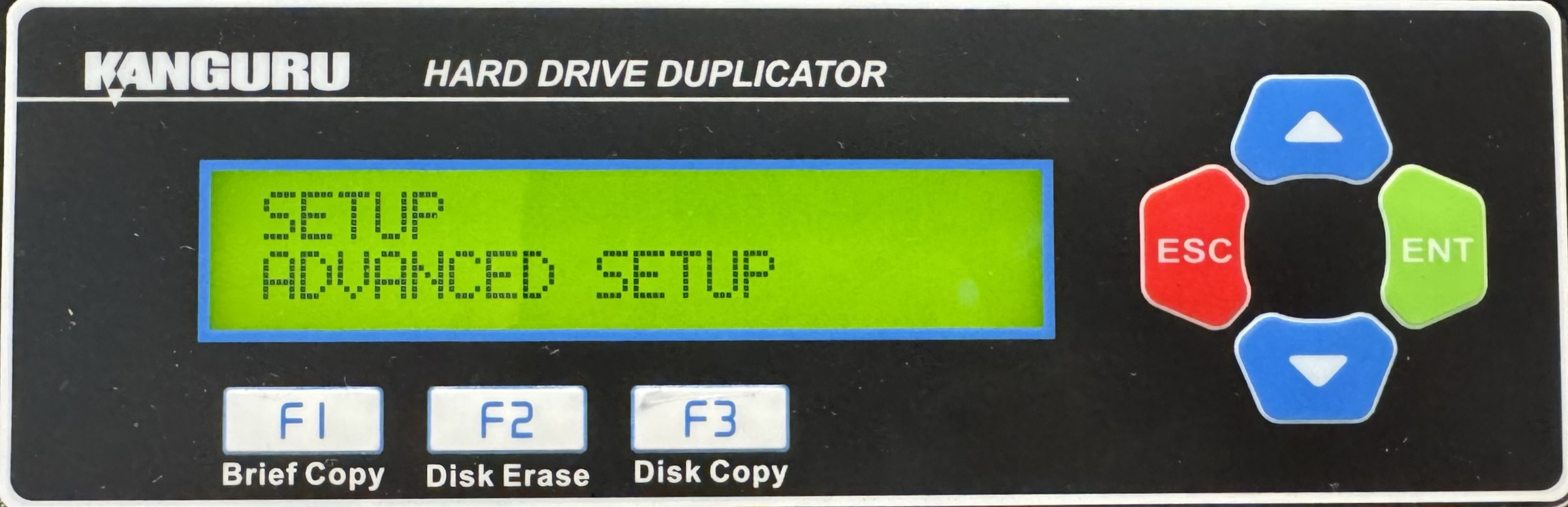
- Press the Up or Down buttons until you see Auto Kick Slow.
- When Auto Kick Slow is displaying for you, press the ENT button to alter the setting.
- Once you have altered the setting, you can press the ESC button to return to the Menu Select mode.


