
HD Pro Duplicator - Main Setup - Model Check

The duplicator has a built-in capacity check function which will check the model of the Source drive and the Target drive(s) during Disk or Brief copy processes and determine whether the drive models are the same. Tap the ENT button to change this option.
|
Disabled |
Model Check is disabled. When a Disk or Brief copy process is executed, the system will not check the models of the Source and Target hard drive(s) and start the copy process as normal. Note: This is the Default setting. |
|
Enabled |
Model Check is enabled. When a Disk or Brief copy process is executed, the system will check the model of the Source and Target drive(s) to determine whether the model is the same. If the drives are different models, then the copy process will be cancelled. |
To alter the Model Check setting:
- Power on the duplicator.
- From the Main Copy Menu press the ESC button to enter the Menu Select mode.
- Press the Up or Down buttons until you see Main Setup.
- When Main Setup is displaying for you, press the ENT button to enter this menu.
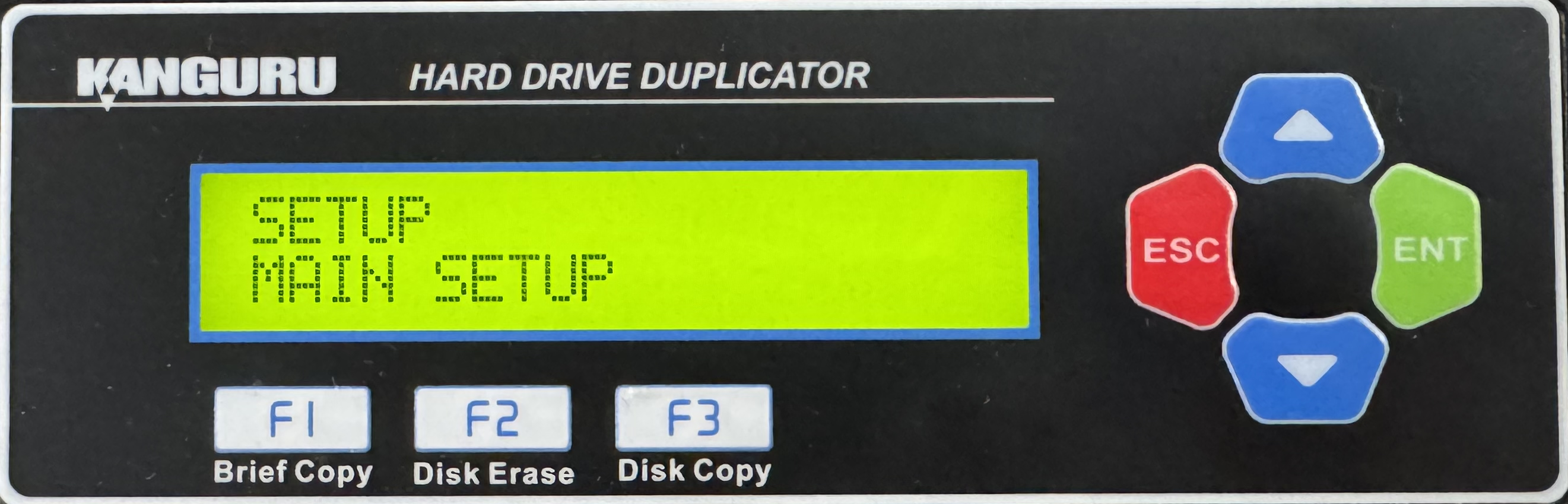
- Press the Up or Down buttons until you see Model Check.
- When Model Check is displaying for you, press the ENT button to alter the setting.
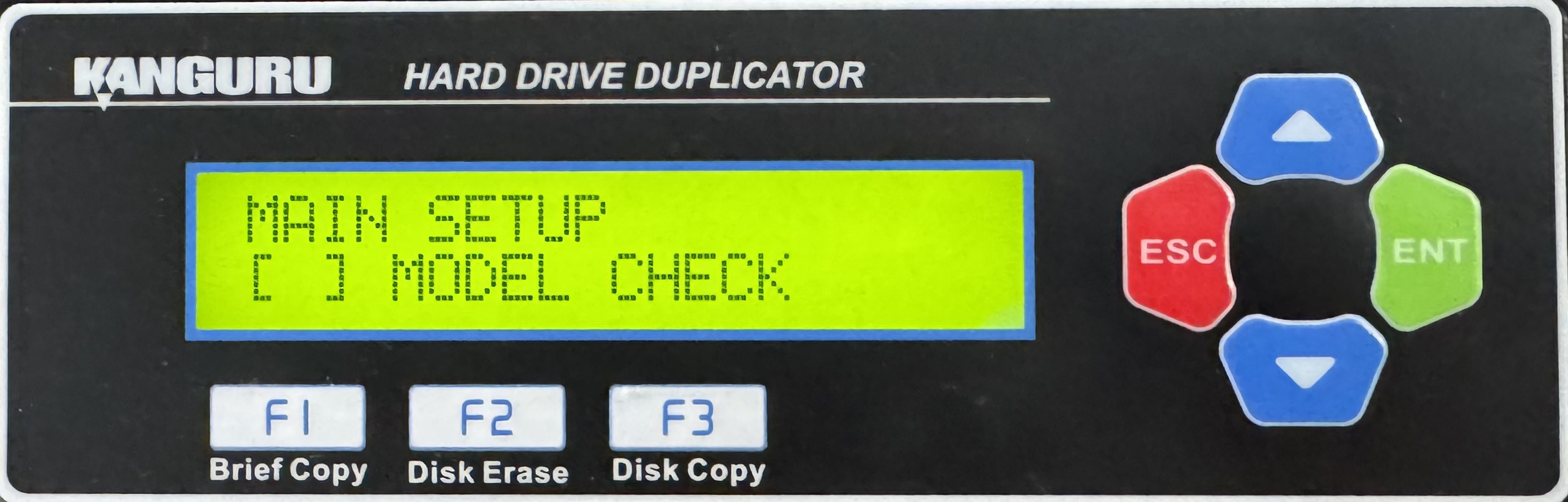
- Once you have altered the setting, you can press the ESC button to return to the Menu Select mode.


