
HD Pro Duplicator - Duplicating From a Storage Center - Loading Image

Once you have formatted a hard drive to act as a Storage Center, you can use the duplicator to load images of your Source HDD’s to the Storage Center.
To load a Source HDD image to the Storage Center:
- Connect the Storage Center to the Source port.
- Connect the Source drive you are imaging to the last Target port on the duplicator (either #7, #15 or #23 depending on model).
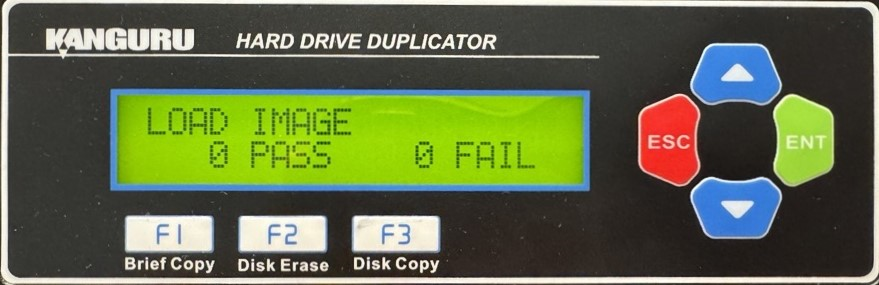
- From the Main Copy Menu, tap the Up or Down buttons to navigate to Load Image. You will see the following screen:
- Tap the ENT button. The duplicator will initialize the disks and then ask you to input a 3-digit name for the image file. Up to 127 file names can be saved in the Storage Center.
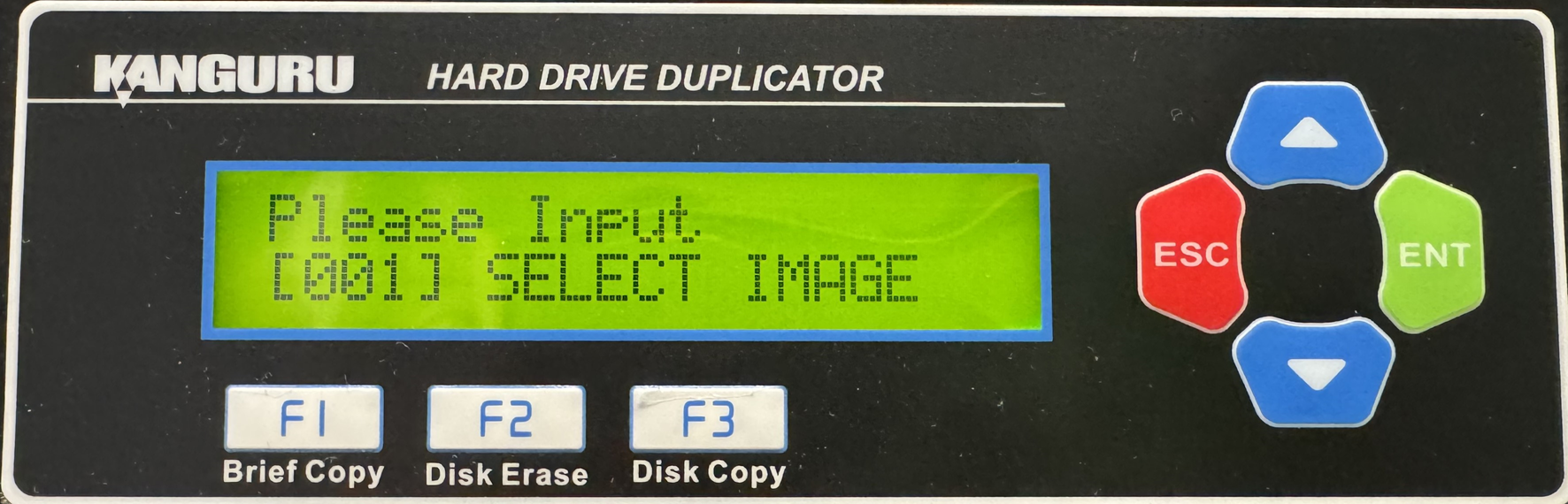
- The file name consists of three digits. The digit furthest to the left will be blinking, indicating that it is currently selected. Tap the Up or Down button to increase or decrease the digit by one.
- Tap the ENT button to select the next digit to the right. Tap the Up or Down button to increase or decrease the digit by one.
- Note: If your duplicator displays the error message, “TARGET NOT FORMATTED” then the hard drive connected to the Source port has not been formatted as a Storage Center yet. You will need to format the drive using Make Storage Center.
- When you have completed naming the image file, press and hold the ENT button for three seconds and the Load process will begin. Note: If the image file name you entered already exists for an image file previously loaded on the Storage Center, the system will ask you to confirm overwriting the previously saved file. Tap the ENT button to confirm or tap the ESC button to cancel.
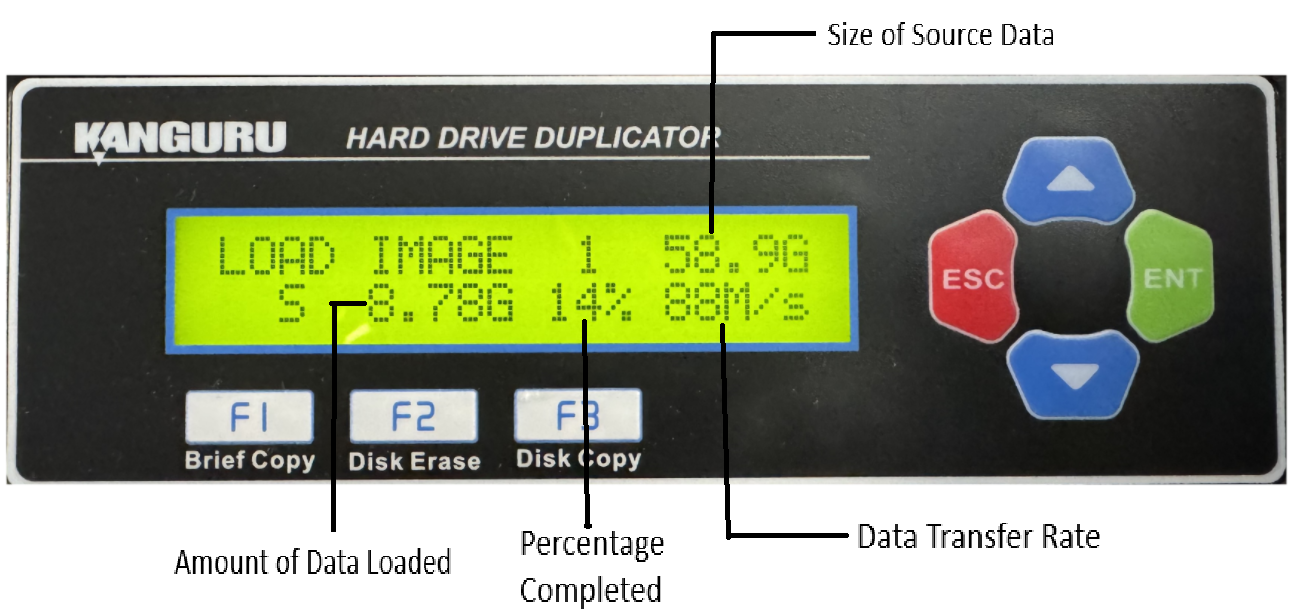
- When the load process has completed you can remove the Source HDD.


