
HD Pro Duplicator - Control Manager Software - General Operation

Before you can run the Kanguru Control Manager software, you will first need to connect the KanguruClone HDD Duplicator to your computer using the provided Serial to USB2.0 adapter cable provided with the duplicator. The serial end of the cable connects to the duplicator and the USB2.0 end of the cable connects to your computer.
Note: If this is the first time connecting the Serial to USB2.0 adapter cable to your computer, you will need to install the necessary device drivers. The device drivers can be found on the CD provided with your duplicator in the folder named “Serial to USB Driver”. You must have administrative privileges in order to install the device driver.
To launch the software:
- Insert the CD that came with your KanguruClone Duplicator into your computer.
- Open the folder named “Kanguru Control Manager”.
- Double click on the ‘ControlManager.exe’ file
The Control Manager software launches. There is no installation required to run Kanguru Control Manager. It can be run as an executable directly from the CD, or you can simply copy the executable file to your local drive and run it from there.
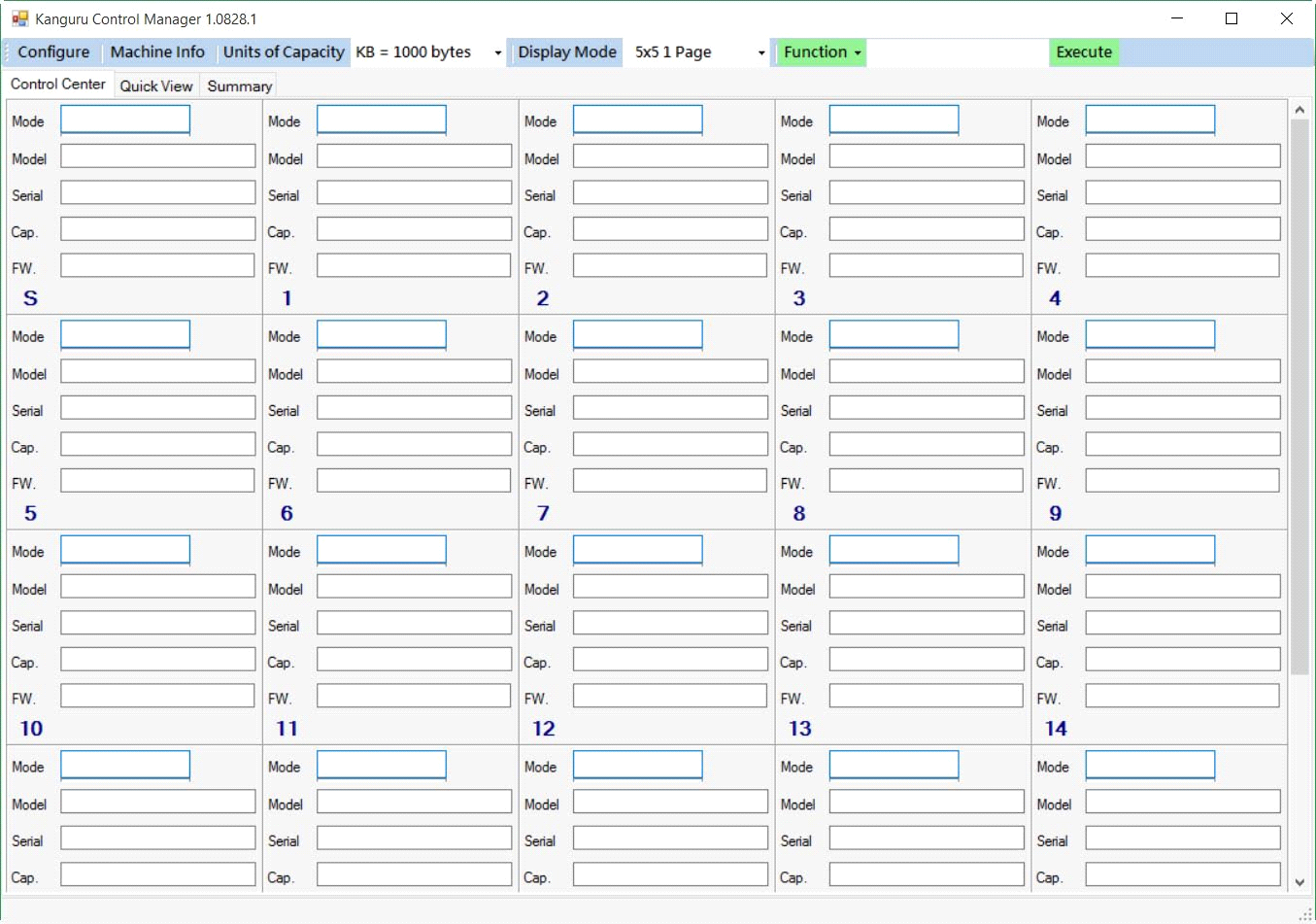
Note: If the grid display does not appear correctly the first time your run Kanguru Control Manager, click on the Display Mode menu and select 5x5 1 Page.


