
HD Pro Duplicator - Control Manager Software - General Operation - Establishing Connection

In order for the duplicator and computer to communicate, you must open a COM port between the two for sending and receiving information.
Once the Control Manager software is running:
- Click on the Configure Menu.
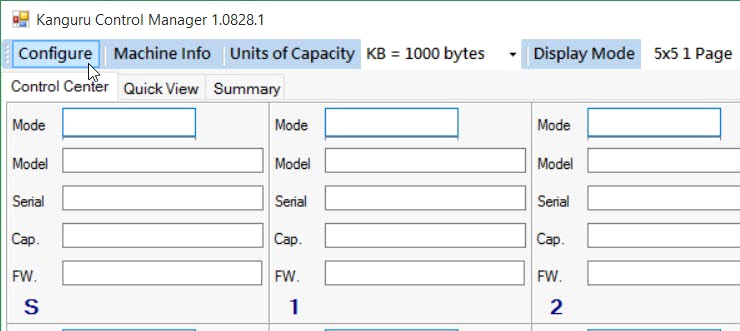 Note: If you receive an error message stating that “There are no COM ports detected on this computer”, then you either have to connect the Serial to USB adapter cable to your computer or you need to install the device driver for the Serial to USB adapter cable on your computer.
 - The ‘Configure: Settings’ window appears. This window is used to configure the file name, and location for the log files that are generated by the Control Manager software.
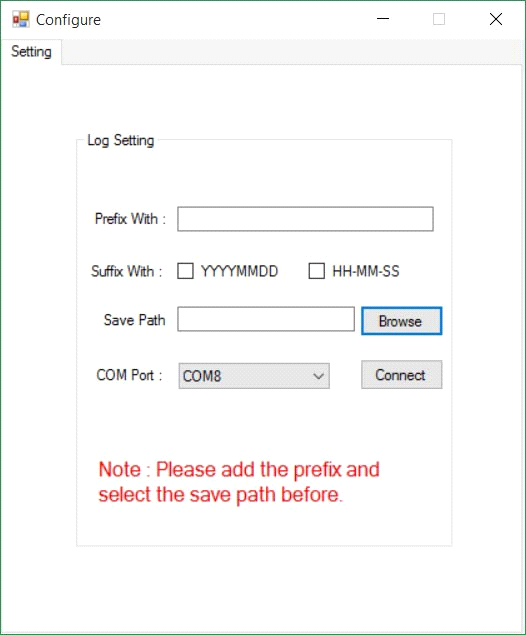
- Enter a name in the field ‘Prefix With:’ This will be the name of the folder where the log files will be saved. All long filenames will begin with this prefix. This field cannot be left empty.
- You can choose to add a date or time stamp at the end of the file name by checking off the ‘Suffix With:’ options.
- ‘YYYYMMDD’ - Date stamp format ‘year/month/day’.
- ‘HH-MM-SS’ - Time stamp format ‘hour-minute-second’.
- Enter the directory path where the log files will be saved, or click on the Browse Button to select the save path from a list of available directories.
- Select a COM port from the ‘COM Port’ drop down menu.
- Click on the Connect Button to establish a connection between the duplicator and the Control Manager software.
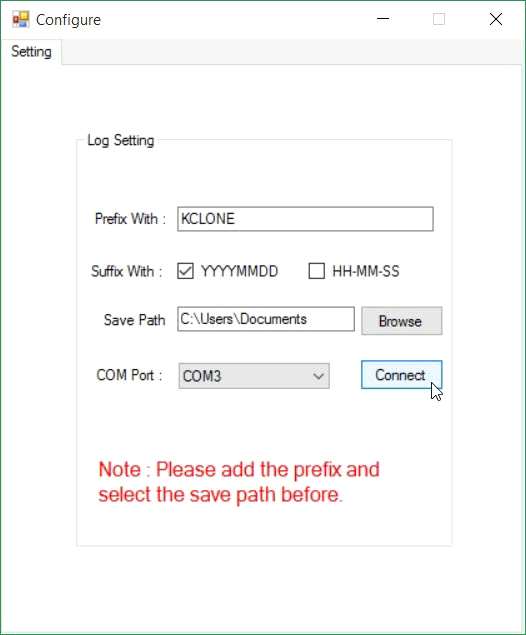
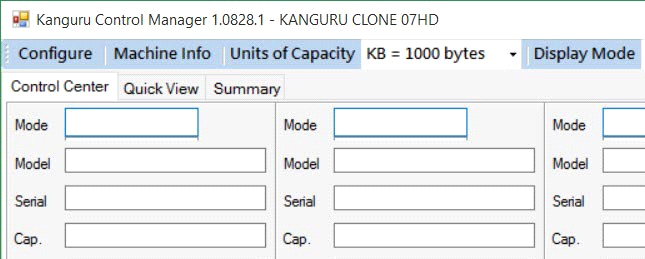
When connection has been established you will see your duplicator model appear in the top left.
If you are not successful in establishing a connection:
- Make sure the duplicator is powered on.
- Make sure that the Serial to USB adapter cable is connected to the duplicator as well as the computer.
- Select a different COM port.


