
HD Pro Duplicator - Kicking Slow Drives - Manually Kick a Slow Drives

During a copy, compare or erase operation, you can view the performance of each individual drive by pressing the Up or Down buttons.
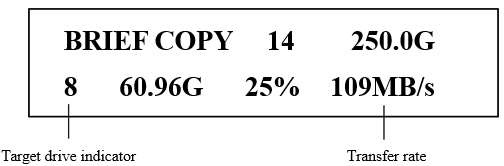
The Target Drive Indicator will inform you which drive is currently selected. The Transfer Rate will show you the speed of this drive. Note: The transfer rate information is not static and can fluctuate, sometimes significantly.
If you notice any slow drives, press and hold the F1 button. This will eject the slowest drive connected from the operation. The red LED will appear next to the ejected drive. Do not disconnect the ejected drive from the duplicator until the current operation is completed.


