
HD Pro Duplicator - Main Setup - DCO Check

A Device Configuration Overlay (DCO), is a partition on the hard drive that is not normally visible to an operating system. The DCO can report to the system that supported features are nonexistent or that the drive is smaller in capacity than it actually is. Tap the ENT button to change this option.
|
Disabled |
DCO Check is disabled. The system will not check for DCO partitions. Note: This is the Default setting. |
|
Enabled |
DCO Check is enabled. When DCO Check is enabled, the duplicator will support Device Configuration Overlay configurations. When you duplicate a Source drive that contains a DCO partition, detect the DCO partition, unlock it, copy the area and then re-lock the area once duplication is complete. |
To alter the DCO Check setting:
- Power on the duplicator.
- From the Main Copy Menu press the ESC button to enter the Menu Select mode.
- Press the Up or Down buttons until you see Main Setup.
- When Main Setup is displaying for you, press the ENT button to enter this menu.
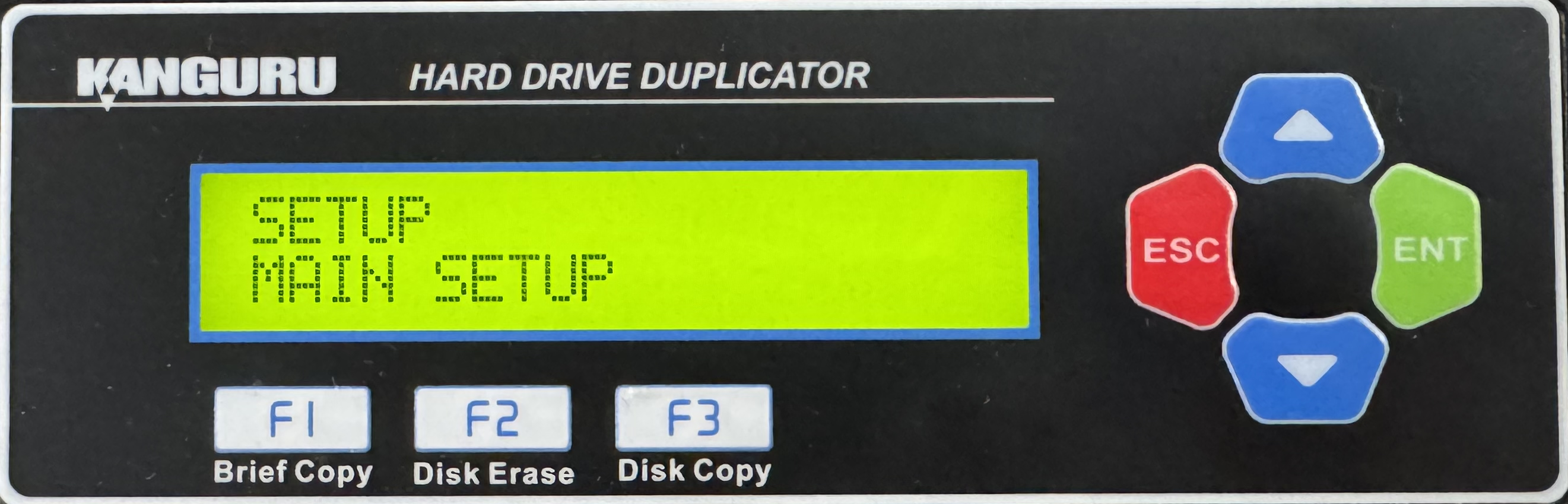
- Press the Up or Down buttons until you see DCO Check.
- When DCO Check is displaying for you, press the ENT button to alter the setting.
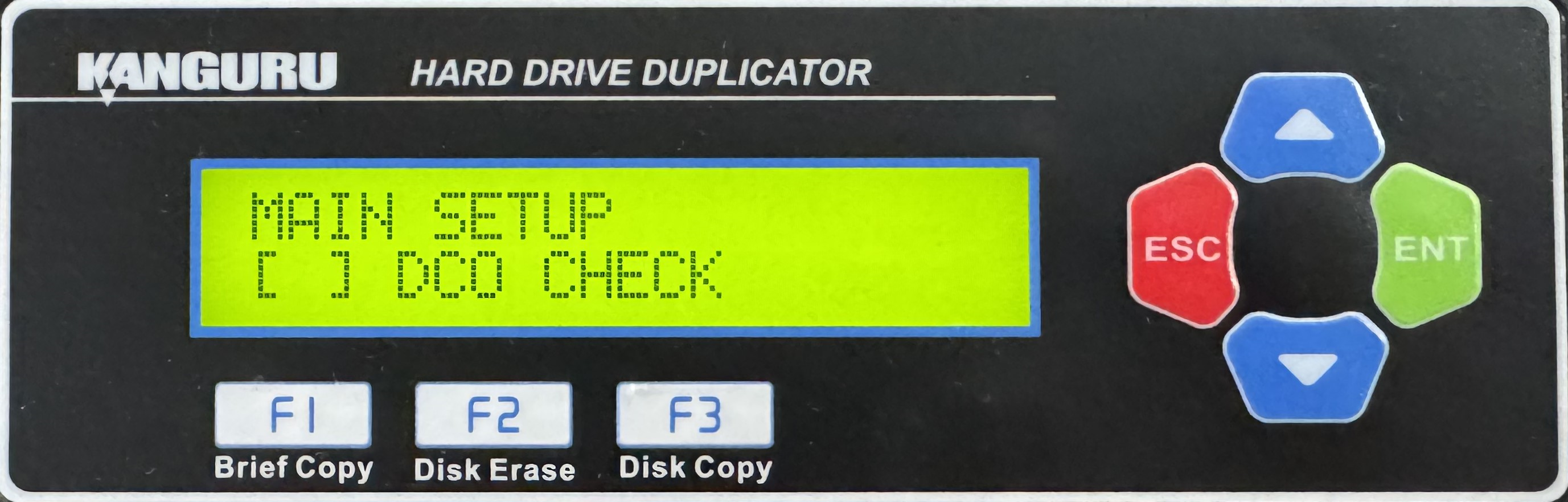
- Once you have altered the setting, you can press the ESC button to return to the Menu Select mode.


