
4-Target NVMe Duplicator - Calibrating the Touchscreen

One of the main features of the KanguruClone 4 M.2 NVMe Duplicator is the touchscreen user interface. If you are having issues with the accuracy of the touchscreen inputs (e.g. unable to access items to the edge of screen) your touchscreen may require re-calibration.
To calibrate your touchscreen:
- Power on the duplicator
- Wait for the boot screen that displays the Kanguru Logo and the device firmware and Mac address. When this screen appears, tap the center of the touchscreen.
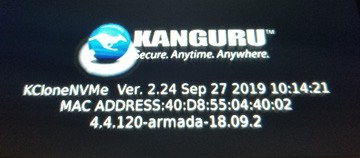
- The calibration screen appears. Using the finger that you normally use to operate the duplicator, tap the crosshair located in the top left corner, top right corner, bottom right corner, bottom left corner, and then center of the screen.
The touchscreen has now been re-calibrated.
If you are still having issues with accurately tapping the touchscreen, you can also use a stylus to tap the screen.


