
HD Pro Duplicator - About - Update Firmware

The Update Firmware function allows you to upgrade your Kanguru Hard Drive Duplicator to the latest firmware version.
To update your firmware:
- Contact Kanguru Technical Support or navigate to the Firmware Update page on the Kanguru Support site to receive a firmware update file.
- Format a SATA drive or USB flash drive as FAT32. You can use the duplicator to perform this format. If you are looking to update using an Hard Drive or Solid State Drive, refer to Format Update Disk. If you are looking to update using a USB Drive, refer to Format USB Drive.
- Copy the firmware file to the drive you just formatted.
- Connect the hard drive to the duplicator’s Source port or USB flash drive to the USB port located on the back of the duplicator.
- Power on the duplicator.
- From the Main Copy Menu press the ESC button to enter the Menu Select mode.
- Press the Up or Down buttons until you see About Menu.
- When About Menu is displaying for you, press the ENT button to enter this menu.
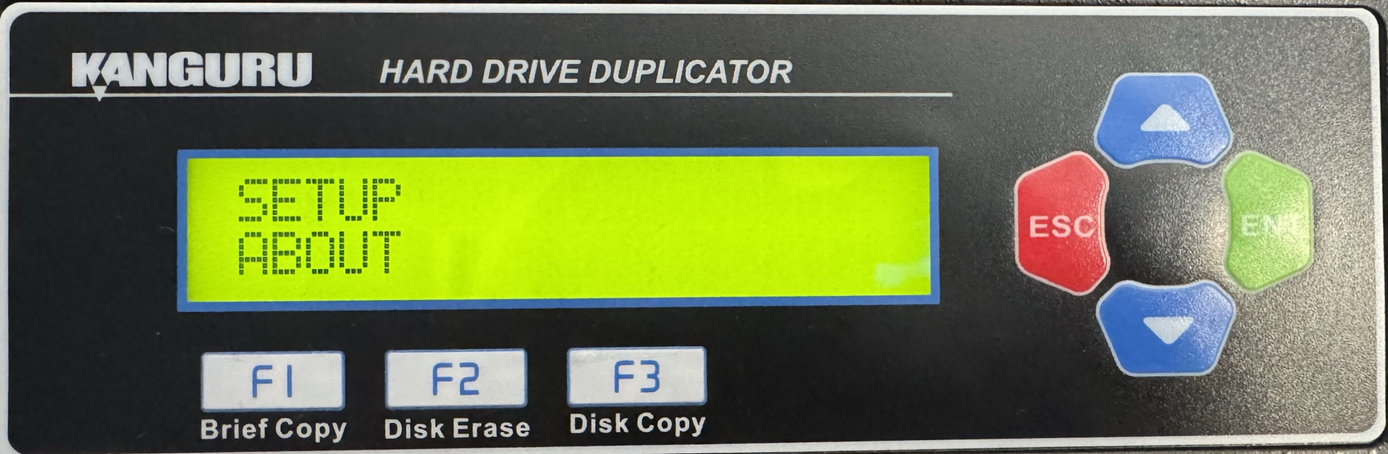
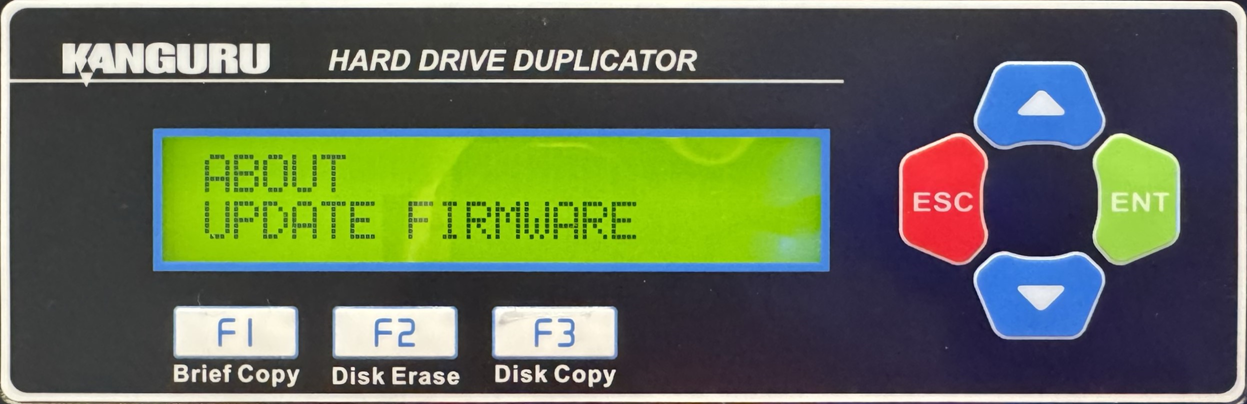
- Press the Up or Down buttons until you see Update Firmware.
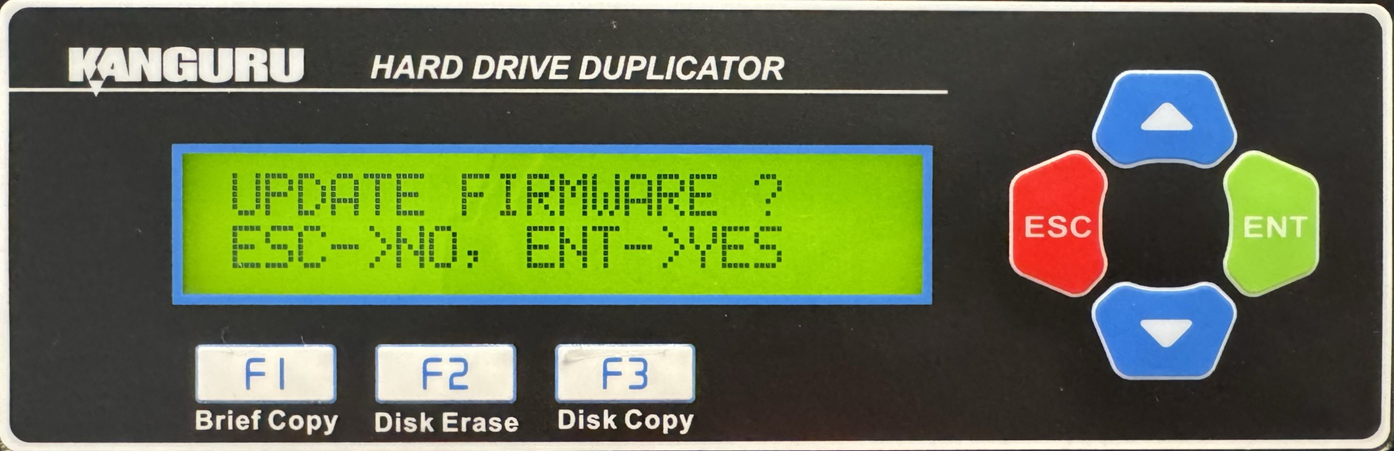
- When Update Firmware is displaying for you, press the ENT button to enter this option.
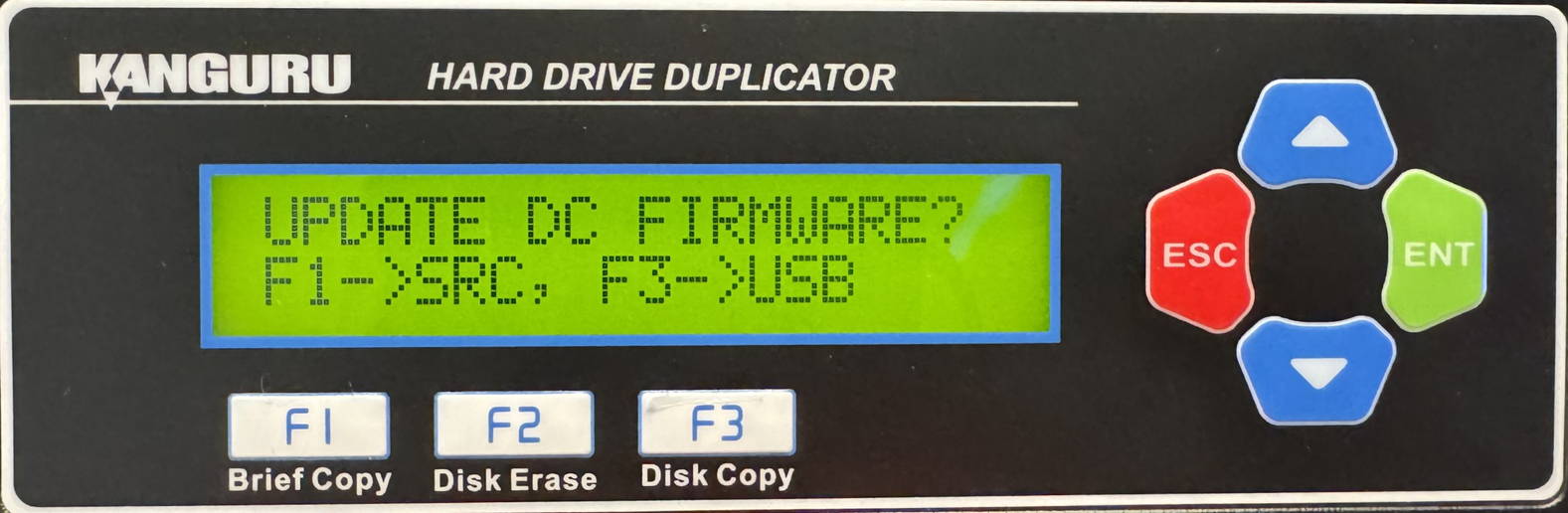
- Tap the F1 button if you are using a SATA drive or tap the F3 button if you are using a USB flash drive.
- Once the system has confirmed the firmware file, a message will be displayed on the screen asking you to confirm the firmware update. Tap the ENT button to proceed or tap the ESC button to cancel.
- Wait for the firmware update process to complete.
- Once the firmware update process has completed, reboot your system and the new firmware version and build number will be displayed on the startup screen.
Warning! Do not disconnect power or turn off the duplicator while updating the firmware. Doing so may cause the duplicator to become non-functional.


