
HD Pro Duplicator - Storage Center Setup - Load Full Image

The Load Full Image option allows you to control how image files are saved to a Storage Center during a Load operation. Tap the ENT button to change this option.
|
Disabled |
The system will analyze the Source’s file system before building the image. If the Source’s file system is supported, the image will be a Brief image based on the file system and data area. If the Source’s file system is unrecognized the image will be a full sector by sector image. Note: This is the Default setting. |
|
Enabled |
When executing a Load process, the system will not analyze the Source’s file system and will automatically build the image sector by sector. |
To alter the Load Full Image setting:
- Power on the duplicator.
- From the Main Copy Menu press the ESC button to enter the Menu Select mode.
- Press the Up or Down buttons until you see Storage Center Setup.
- When Storage Center Setup is displaying for you, press the ENT button to enter this menu.
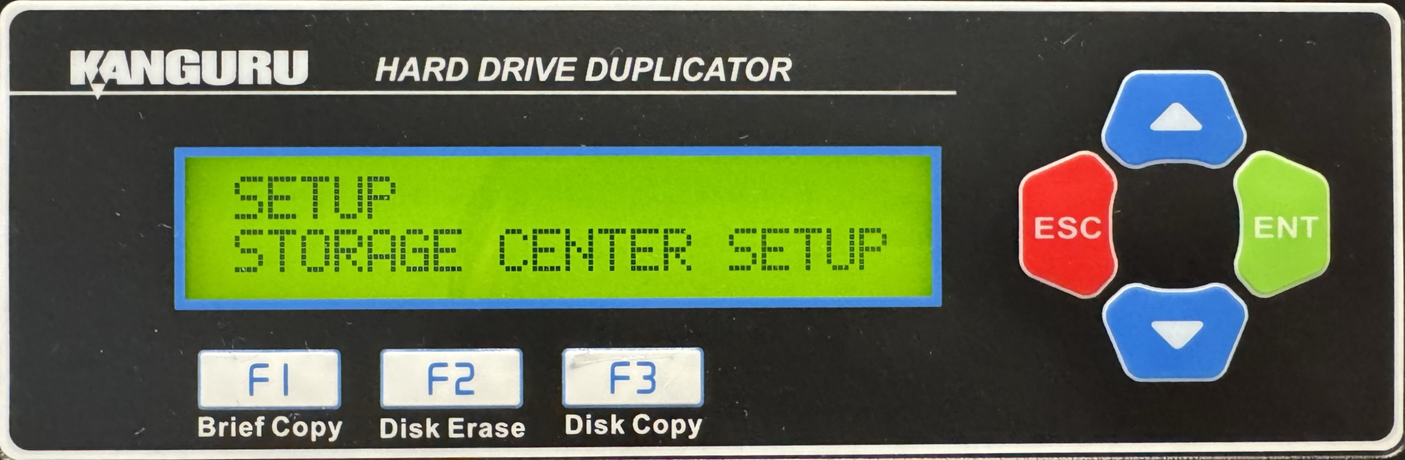
- Press the Up or Down buttons until you see Load Full Image.
- When Load Full Image is displaying for you, press the ENT button to alter this setting.
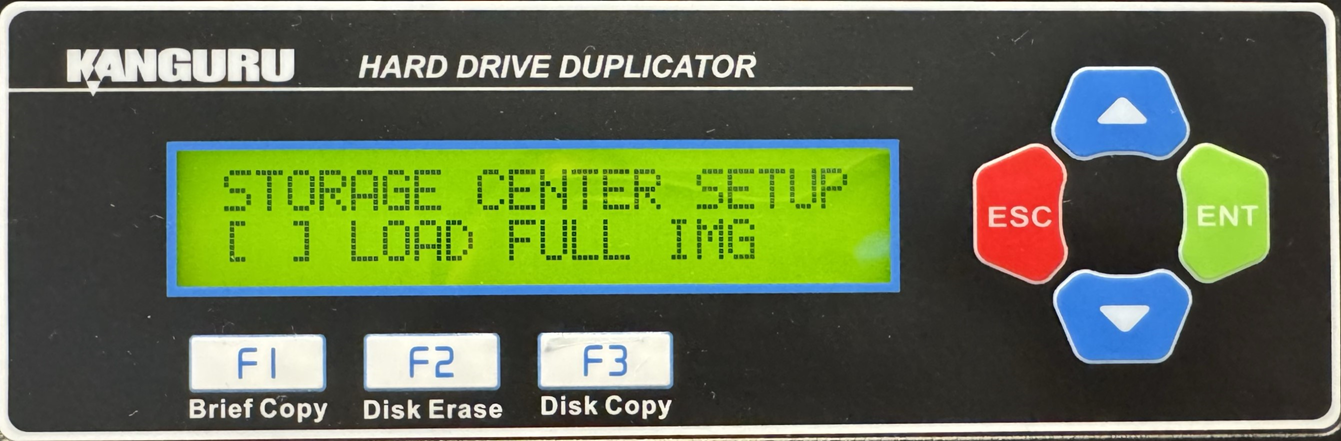
- Once you have altered the setting, you can press the ESC button to return to the Menu Select mode.


