
4-Target NVMe Duplicator - Maxi Management Software

The Maxi Management software allows you to connect and manage a duplicator with a PC. Maxi Management software (henceforth referred to as Maxi) is only compatible with Windows PCs.
To make the duplicator visible to a network, connect the duplicator to a network router via the RJ45 port on the back of the unit and then make sure “Enable Server Control” is selected in Network settings. You can now manage the duplicator on a computer running Maxi over a LAN.
Configuring the Maxi Management Software
- Run MaxiSetup.exe and follow the instructions to install Maxi.
- Run Maxi.exe to launch Maxi.
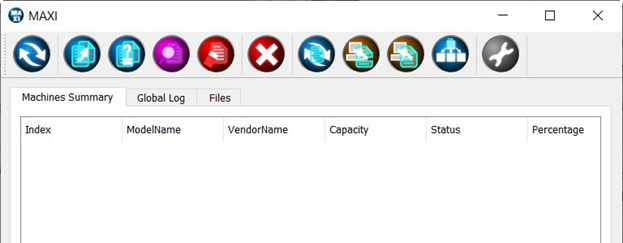
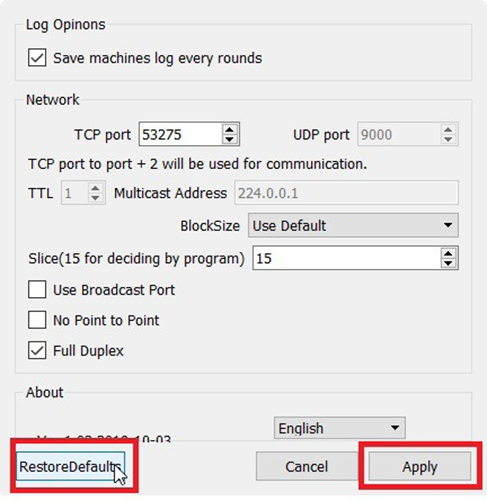
If it is your first time running Maxi, you should reset the default values.
- Click on Setup to open the setup menu.
- Click on the Restore Defaults button, and then click on the Apply button.
- Click on Connect-to-connect Maxi with the KanguruClone duplicator.
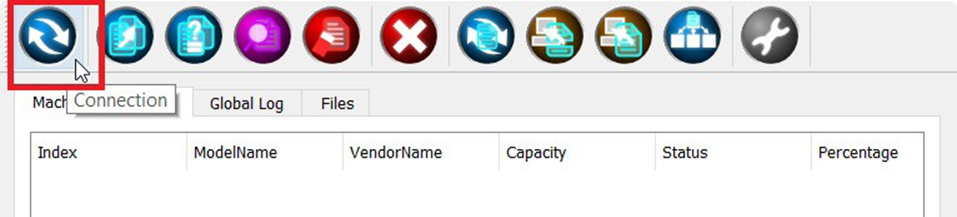
Maxi will detect and attempt to connect to any duplicators on the same LAN.
When Maxi establishes a connection with a duplicator, the duplicator’s screen will change to a blue colored theme and the machine will appear in Maxi under the Machine Summary tab.
|
Machine Summary |
Detected KanguruClone connected to Maxi appear here. When Maxi is connected to more than one KanguruClone, each KanguruClone will have its individual window to display more information including Status, Settings, Logs, and Files in the source media. |
|
Global Log |
Displays a list of events recorded by Maxi. |
|
Files |
If you are using a Storage Center, this will display a list of image files found on the KanguruClone. If no files are found, select the Refresh Files button. |
Maxi Functions
|
Connect |
 |
Click on Connect to connect Maxi with the KanguruClone duplicator. |
|
Copy |
 |
Click on Copy to start a copy on a connected KanguruClone. |
|
Compare |
 |
Click on Compare to start a compare on a connected KanguruClone. |
|
Verify |
 |
Click on Verify to start a verify on a connected KanguruClone. |
|
Erase |
 |
Click on Erase to start an erase on a connected KanguruClone. |
|
Stop |
 |
Click on Stop to stop any function currently running on a connected KanguruClone. |
|
Refresh Files |
 |
If you are using the storage center, click on Refresh Files to rescan the Source position on a connected KanguruClone for a drive containing image files. Any detected image files appear under the Files tab. |
 |
Brief Load is used to build a data image of a Source drive connected to the duplicator’s Source port, and save it locally on the PC running Maxi. This is only if you are using the storage center. |
|
 |
Full Load is used to build a full disk image of a Source drive connected to the duplicator’s Source port, and save it locally on the PC running Maxi. This is only if you are using the storage center. |
|
 |
Restore or load an image file saved on the host PC to a Source drive connected to the KanguruClone’s Source port. This is only if you are using the storage center. |
|
|
Settings |
 |
Click on Settings to option the configuration menu for the Maxi application. |


