Use UKLA to Register Defender to KRMC Enterprise

To use this guide, you must have access to the following item:
- KLA version 3.3.0.6 or newer
- At least one Defender drive utilizing the latest version of the KDM application
- Access to the KRMC Enterprise server
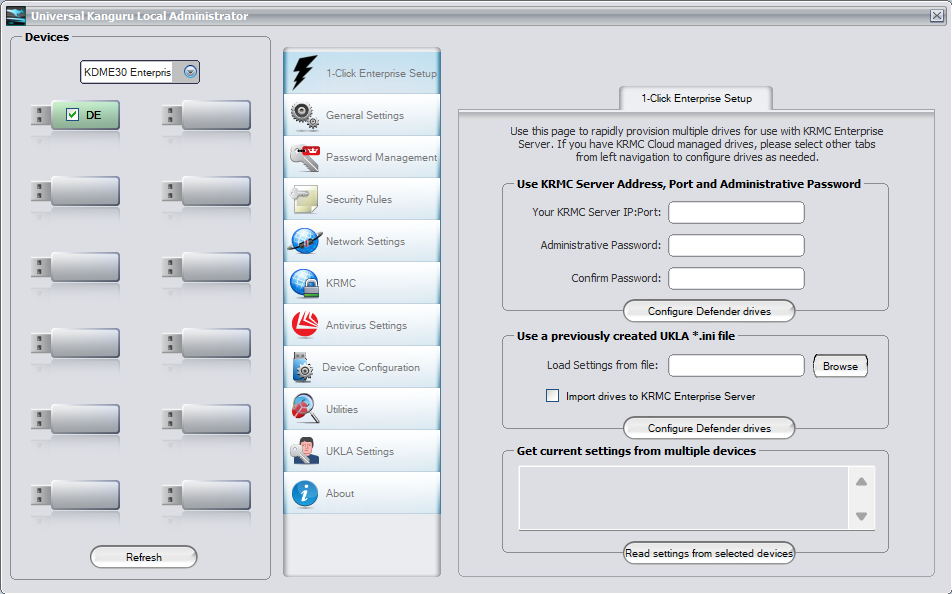
1. Connect one Kanguru Defender device to your computer and launch the UKLA application. In this example I am utilizing the Defender Elite 30. When the application launches fully you should see the device(s) connected as green with the correct model showing in the dropdown. Please note that you can only perform these steps on up to 8 drives at a time and they must all be the same model.
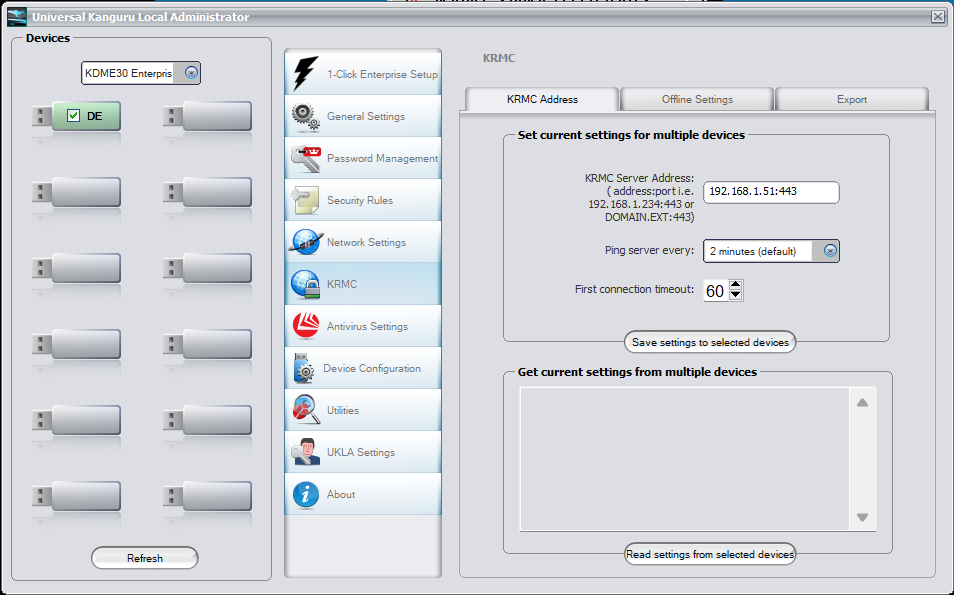
2. Once your devices have been seen by UKLA, navigate to the KRMC option. From here enter your server's name or IP address into the blank field followed by “:443” and press “Save settings to selected devices”.
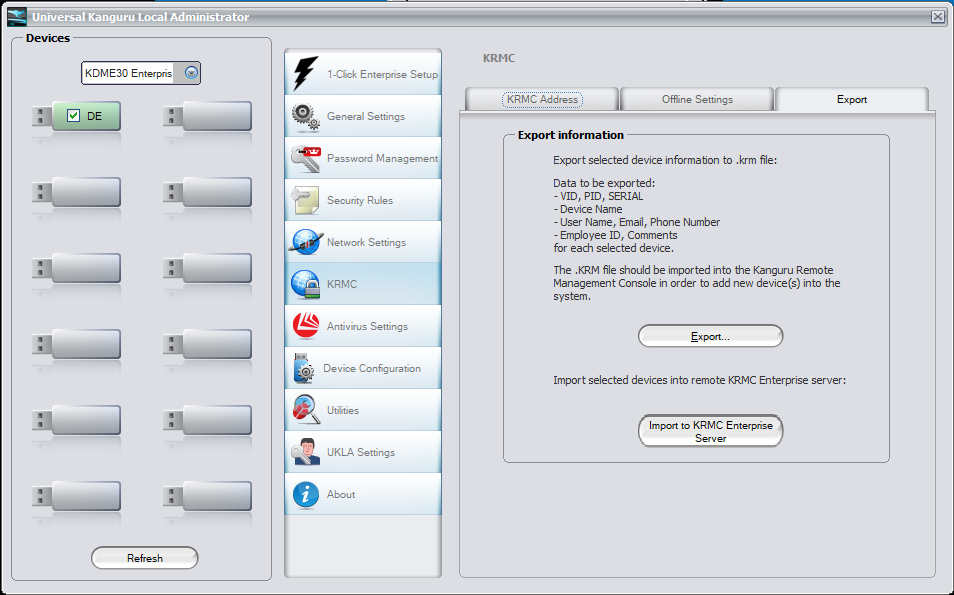
3. Next, navigate to the tab labeled “Export”. From here you have two options in “Export” or “Import to KRMC Enterprise Server”.
- The option “Export” allows you to download the registration of the device(s) connected to your UKLA application to a .krm file. This file can then be manually imported into your KRMC server by navigating to the Device List and selecting the tab at the top labeled “Import”.
- The option “Import to KRMC Enterprise Server” will ask you for the SA email address and password to your KRMC Enterprise server. After those credentials are provided the UKLA application will attempt to import the drives connected to your UKLA application directly to your server without needing to perform a manual import.