
HD Pro Duplicator - Advanced Setup - Need Resize

The Need Resize option configures the way that the Smart Copy operates. When you execute a Smart Copy operation, the system checks the capacity between the Source drive and all connected Target drives. If the capacity of any of the Target drives exceeds the capacity of the Source drive by the tolerance percentage defined by the Need Resize option, then the duplicator will automatically execute a Resize copy. Otherwise, it will run a Brief Copy. Tap the ENT button to change this option.
The default value is: 3% but can be set to any value between 0% and 20%.
For example:
- [ 0%] : All targets must be the same capacity. If the capacity between the Source and Target drives is any different than the system will execute a Resize Copy.
- [10%] : If the capacity difference between the Source and Target drives is between 0% and 10% then the system will execute a Brief Copy. If the capacity of the Targets is larger than the capacity of the Source by more than 10% then the system will execute a Resize Copy.
To alter the Resize percentage:
- Power on the duplicator.
- From the Main Copy Menu press the ESC button to enter the Menu Select mode.
- Press the Up or Down buttons until you see Advanced Setup.
- When Advanced Setup is displaying for you, press the ENT button to enter this menu.
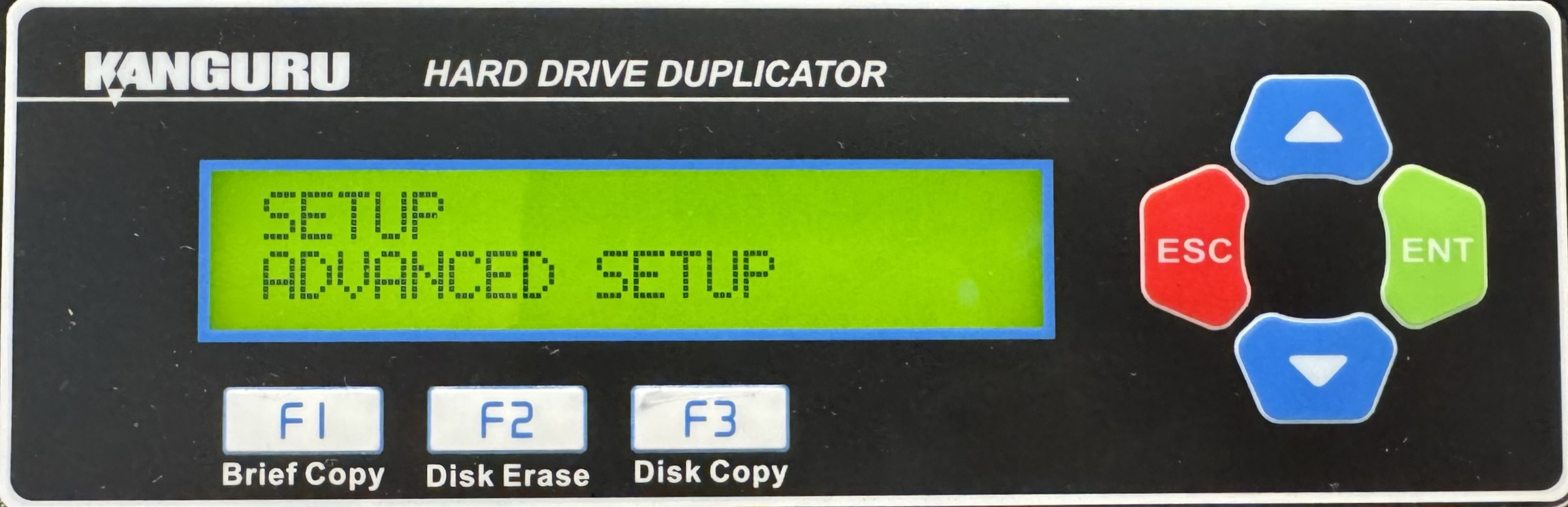
- Press the Up or Down buttons until you see Need Resize.
- When Need Resize is displaying for you, press the ENT button to alter the setting.
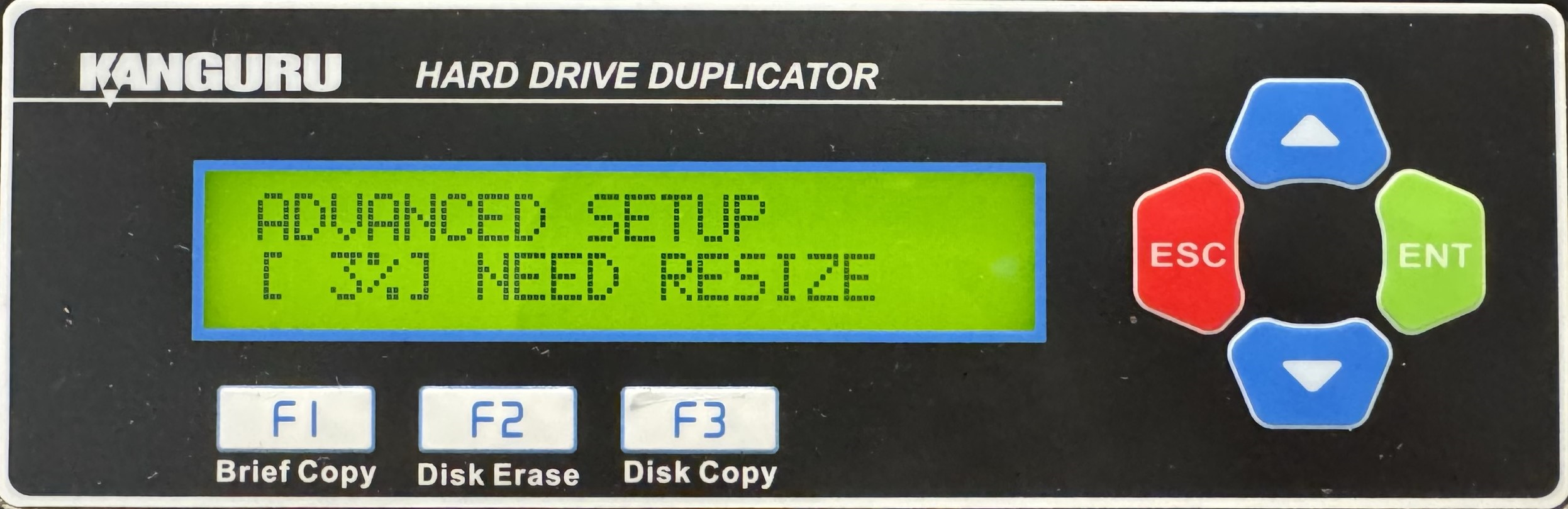
- Use the Up or Down buttons to alter the setting to the percentage you would like between 0% and 20%.
- Press the ENT button to save the setting.
- Press the ESC button to return to the Menu Select mode.


