
HD Pro Duplicator - Storage Center Setup - Select Image File

The Select Image File option is used to select an image file when the Skip Select Image option is enabled. If Skip Select Image is enabled, the image file selected here will be used as the default Source for any copy process.
To select an image file name:
- Power on the duplicator.
- From the Main Copy Menu press the ESC button to enter the Menu Select mode.
- Press the Up or Down buttons until you see Storage Center Setup.
- When Storage Center Setup is displaying for you, press the ENT button to enter this menu.
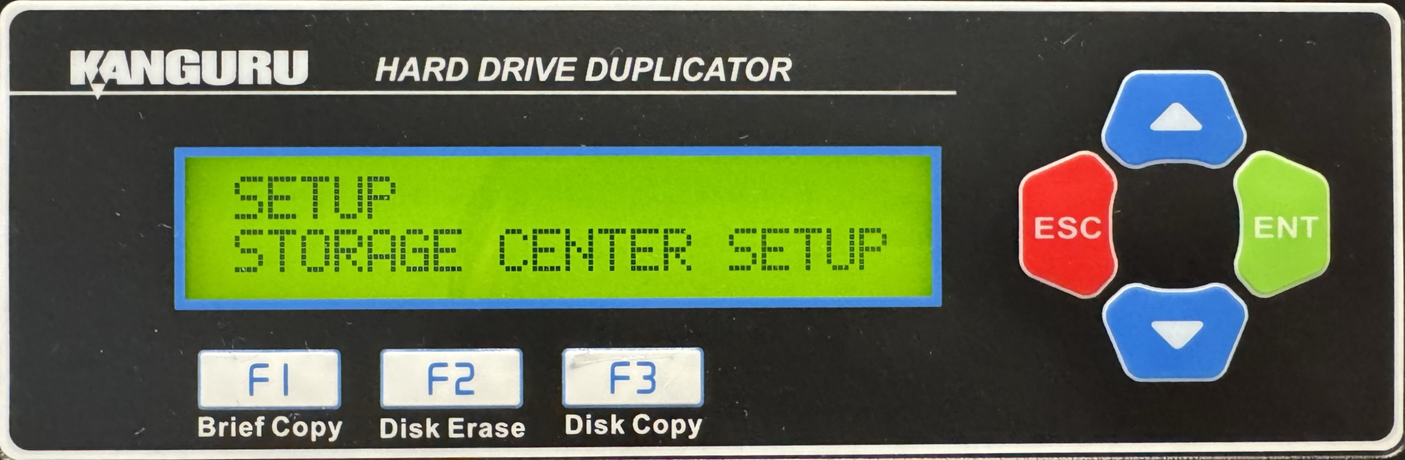
- Press the Up or Down buttons until you see Select Image File.
- When Select Image File is displaying for you, press the ENT button to alter this setting.
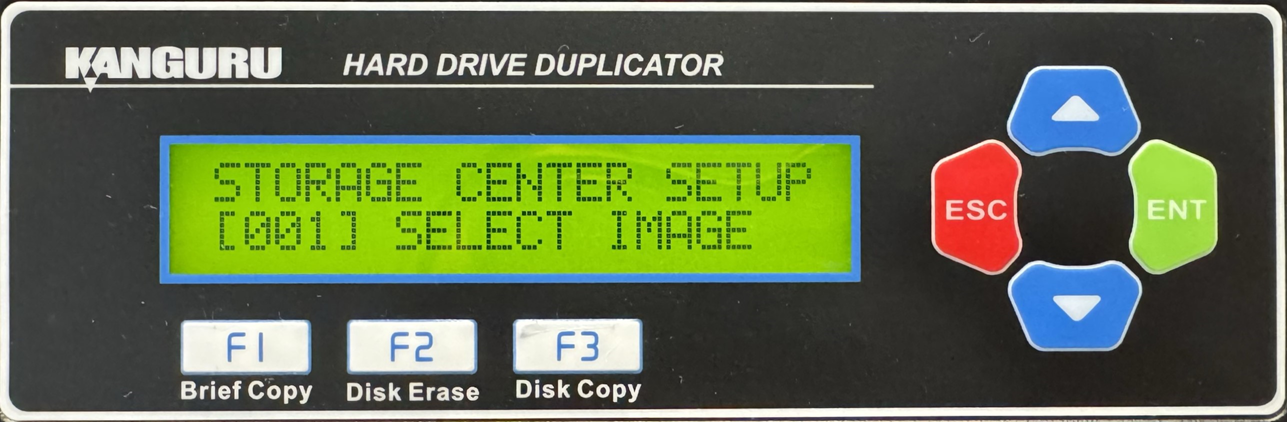
- The digit furthest to the left will start blinking, indicating that it is currently selected. Tap the Up or Down buttons to increase or decrease the digit by one.
- Tap the ENT button to select the next digit to the right. Tap the Up or Down buttons to increase or decrease the digit by one.
- Repeat step 2 until you have entered the complete image name, then press and hold the ENT button to set the default file image.
- Once you have selected the image, you can press the ESC button to return to the Menu Select mode.


