
HD Pro Duplicator - Storage Center Setup - Skip Select Image

The Skip Select Image option allows you to set whether the duplicator asks you to select an image file when it recognizes that the drive connected to the Source is a Storage Center. Tap the ENT button to change this option.
|
Disabled |
The system will analyze the Source’s file system before duplication. If the Source’s file system is recognized as a Storage Center then the duplicator will ask you to choose a image name to copy. Note: This is the Default setting. |
|
Enabled |
The system will analyze the Source’s file system before duplication. If the Source’s file system is recognized as a Storage Center then the duplicator will automatically make a copy of the image configured in the Select Image File option. |
To alter the Skip Select Image setting:
- Power on the duplicator.
- From the Main Copy Menu press the ESC button to enter the Menu Select mode.
- Press the Up or Down buttons until you see Storage Center Setup.
- When Storage Center Setup is displaying for you, press the ENT button to enter this menu.
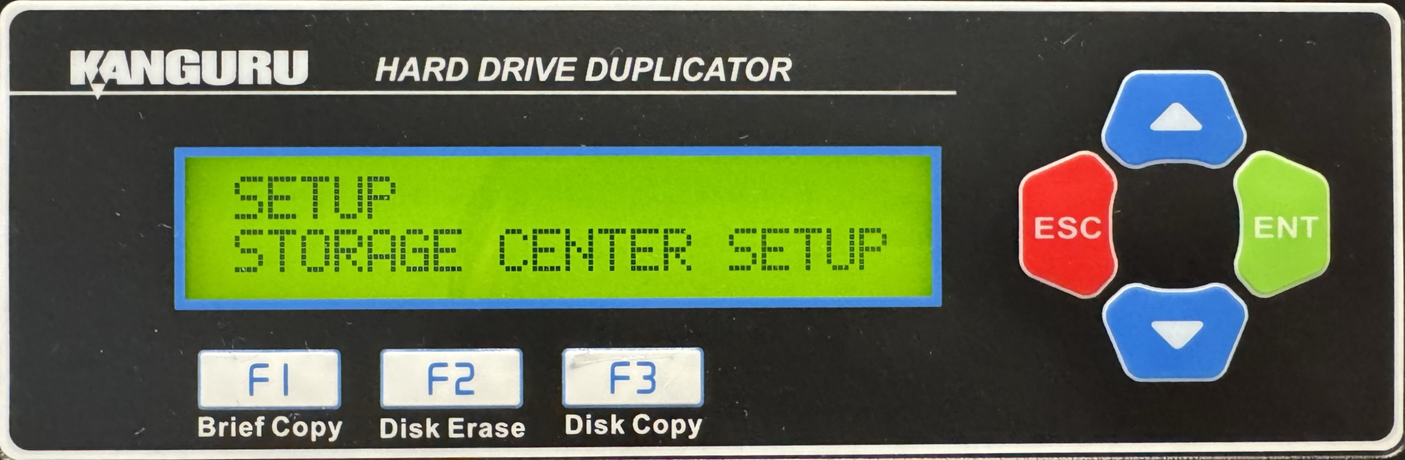
- Press the Up or Down buttons until you see Skip Select Image.
- When Skip Select Image is displaying for you, press the ENT button to alter this setting.
- Once you have altered the setting, you can press the ESC button to return to the Menu Select mode.


